
Playbook
Using the CRM
The day-to-day of working through cold-call tasks in our CRM. Read it once end-to-end, then keep it open while you make your first five calls — after that, the muscle memory takes over.
1 · What's already set up for you
Before you log in, here's what's waiting:
- A queue of prospects imported into the CRM, each with full research and contact details.
- Every one of them has a Cold-call task assigned to you — that's your queue.
- Each company has a Research note with deep context (why they're a fit, recent signals, decision-makers, source URLs).
- All of it is sorted by signal strength: Hot Warm Cold — these map to task priority High / Medium / Low.
You don't need to find leads. They're queued. Your job is to work through them one at a time.
2 · Logging in
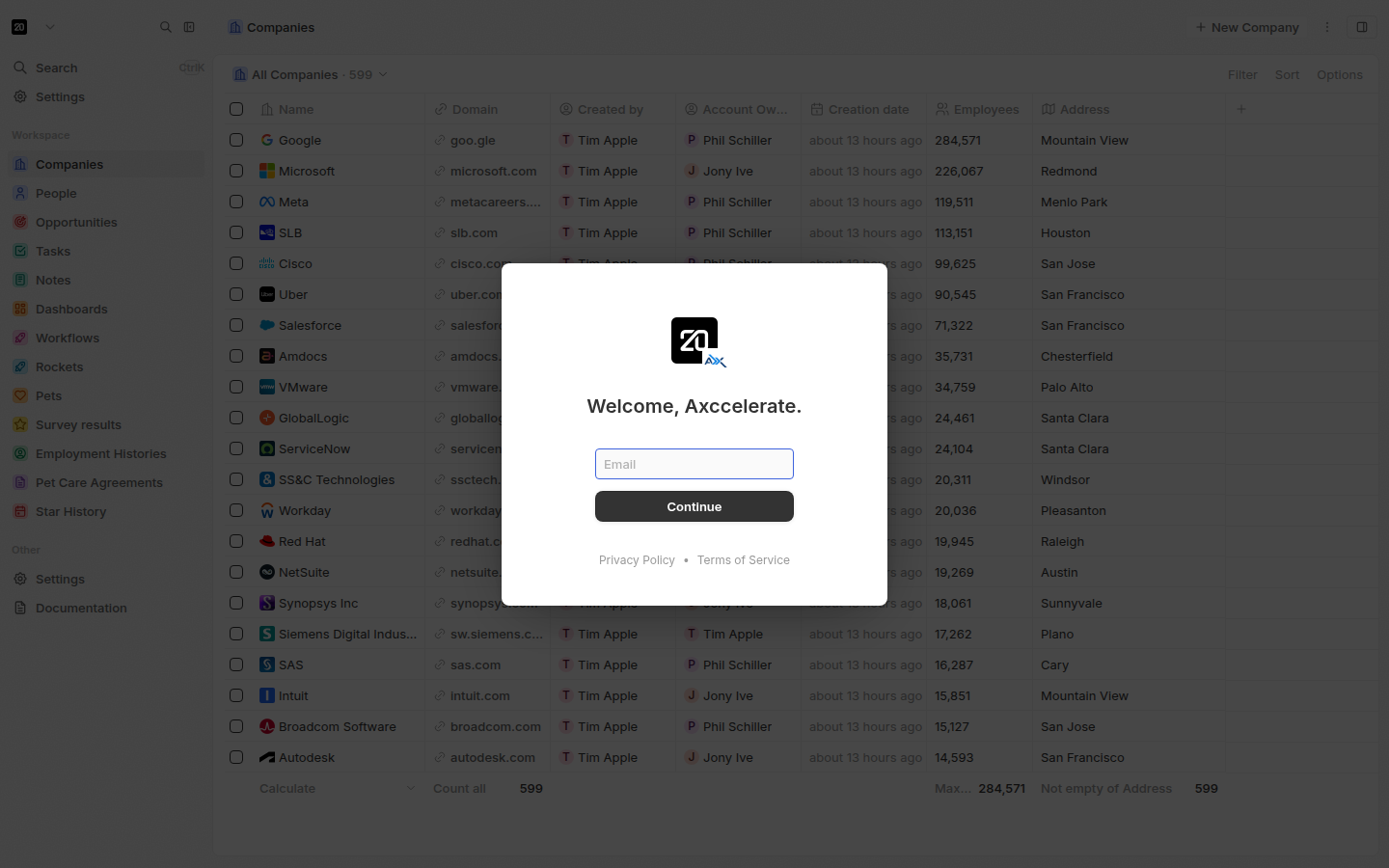
URL: https://crm.axccelerate.com
How: click Continue with Email and use the credentials your manager sent you.
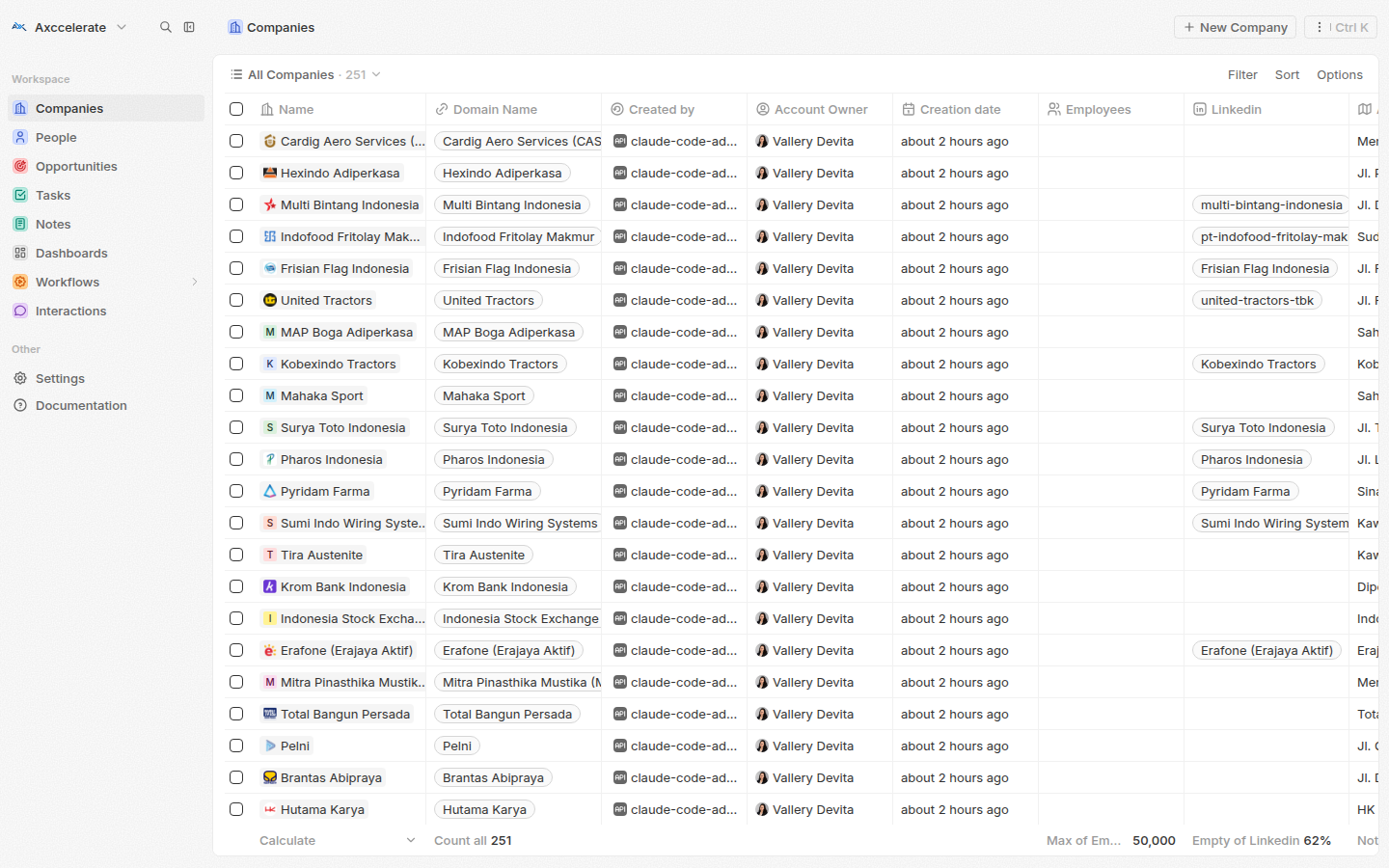
Once in, you'll see the sidebar on the left. Sections you'll use most:
- Tasks — your queue of cold calls.
- Companies — every prospect, with deep details and research notes.
- People — decision-makers (one or more per company).
- Notes — research notes (read-only context, not call logs).
- Interactions — where you log every real touchpoint (call, email, meeting).
- Opportunities — only created when a prospect shows real interest.
3 · Your daily loop — the short version
- Open Tasks → sort by High → pick the top one.
- Open the task → read the brief (phone, opener, decision-makers).
- Make the call.
- Log the result as an Interaction on the company.
- Mark the task Done (or snooze if "call back later").
That's it. Repeat ~50 times a day during the morning power-dial block (09:00–11:00 Jakarta time — when decision-makers are most likely to answer).
4 · Working through your task list
Open Tasks in the sidebar. You'll see a list of "Cold-call …" tasks, all assigned to you, all set to TODO. To prioritise:
- Sort by Due date ascending — the most overdue ones first. (The pre-import set them all due tomorrow, so this becomes meaningful once you start working through them and snoozing some.)
- Need extra context on which prospects are hottest? Open Companies, sort by Priority = High, and work through those — each company has its Cold-call task linked on its detail page.
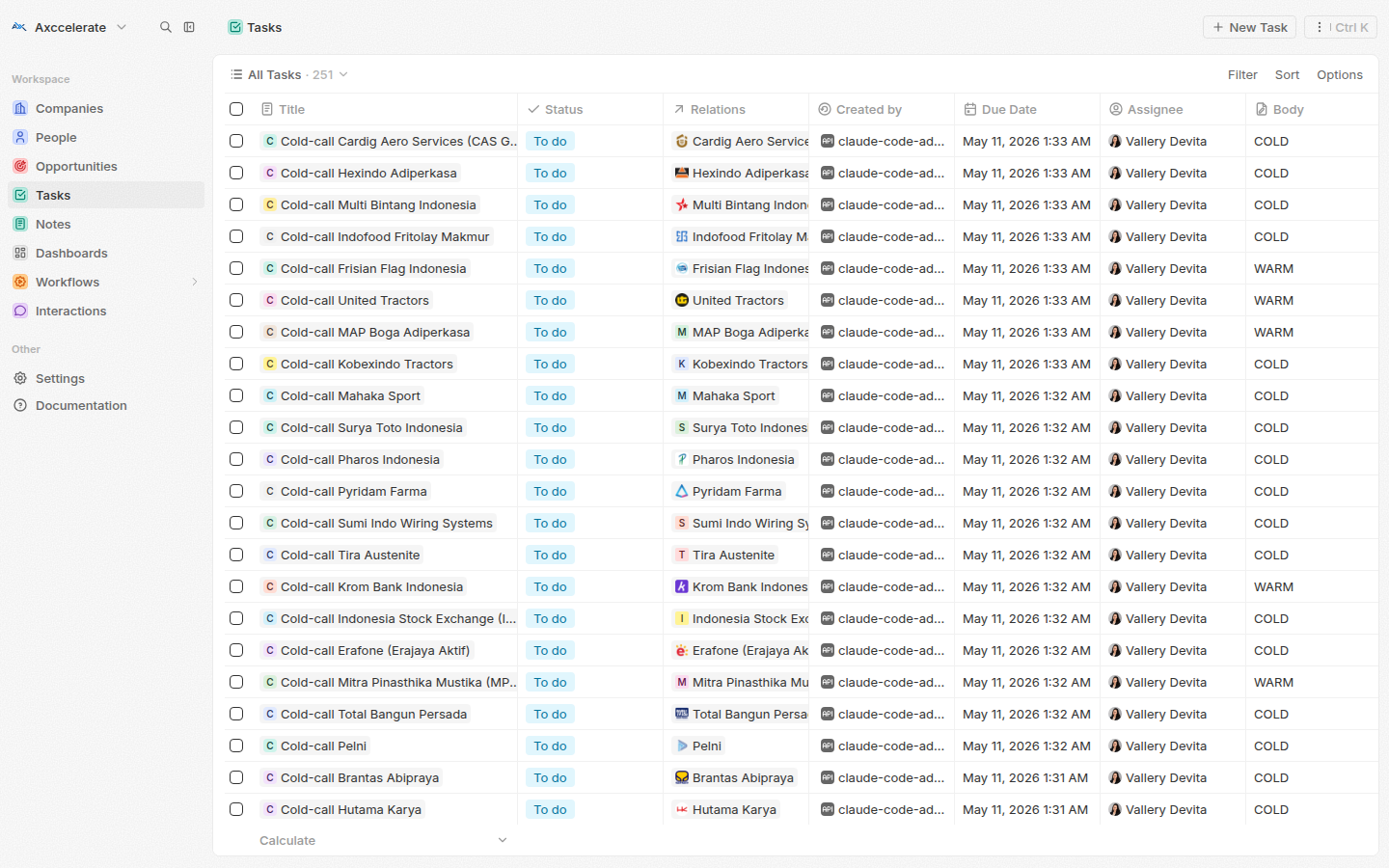
Click any task to open it. The body has everything you need to make the call:
- Signal tier (Hot / Warm / Cold) and the service we'd pitch.
- Opener — your hook, written based on a recent signal we saw.
- Phone (and alt phone, email, website, LinkedIn).
- Decision-makers — names + titles to ask for if a gatekeeper picks up.
- Recent signal — 2–3 things we saw that triggered the lead.
Use the opener as-is or paraphrase it. It's pre-researched.
5 · Reading the Research note (when you want more context)
The task has the headlines. The Research note has the depth.
To find it: from the task, click the Company name → on the company's page click the Notes tab → open the entry titled "Research note — <Company>".
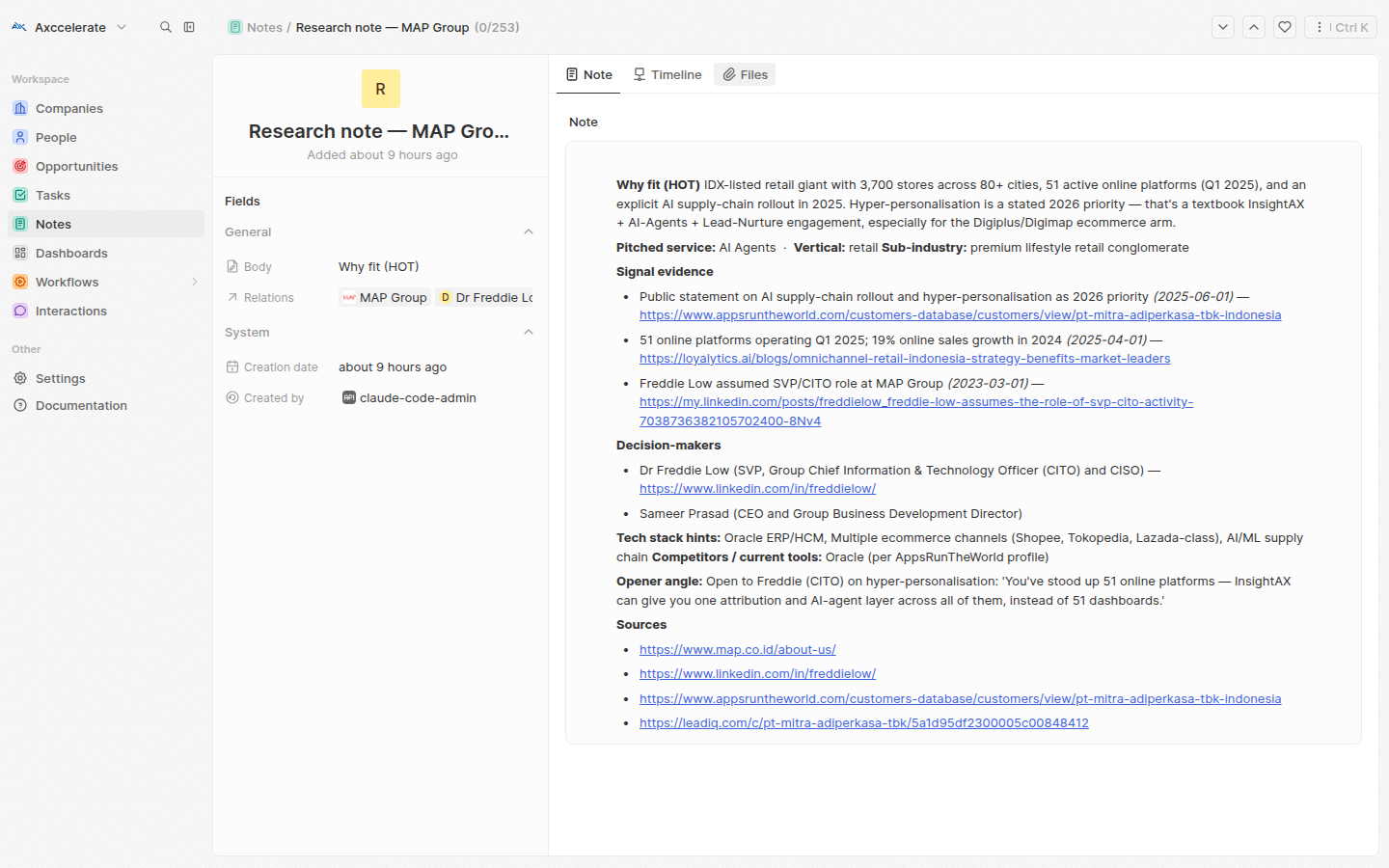
What's in it:
- Why fit — the case for this prospect in 2–3 sentences.
- Sub-industry detail (e.g. "FMCG / household + personal care").
- Signal evidence with dates and source URLs — the real reason they're on your list.
- Decision-makers with LinkedIn links (when known).
- Tech stack hints and competitor tools they may already use.
- Source URLs for every claim, in case you want to verify.
Read it before Hot and Warm calls. For Cold calls, the task body is usually enough.
6 · Logging the call — as an Interaction
Every actual touchpoint becomes an Interaction. This is the single most important habit.
Why it matters: so we can see your real activity, build call history per prospect, and follow up at the right time. Putting it in the task body or note silently breaks the data — we won't know who you've actually called.
How to log one
- From the company's page, click Interactions → New.
- Fill in the fields:
- Type — Call, Email, or Meeting.
- Direction — Outbound for cold calls; Inbound if they call back.
- Summary — what happened in 1–3 sentences (rich text supported).
- Follow-up date — set if there's a clear next touch ("call back Tuesday 10:00").
- Owner — your name (defaults correctly).
- Save.
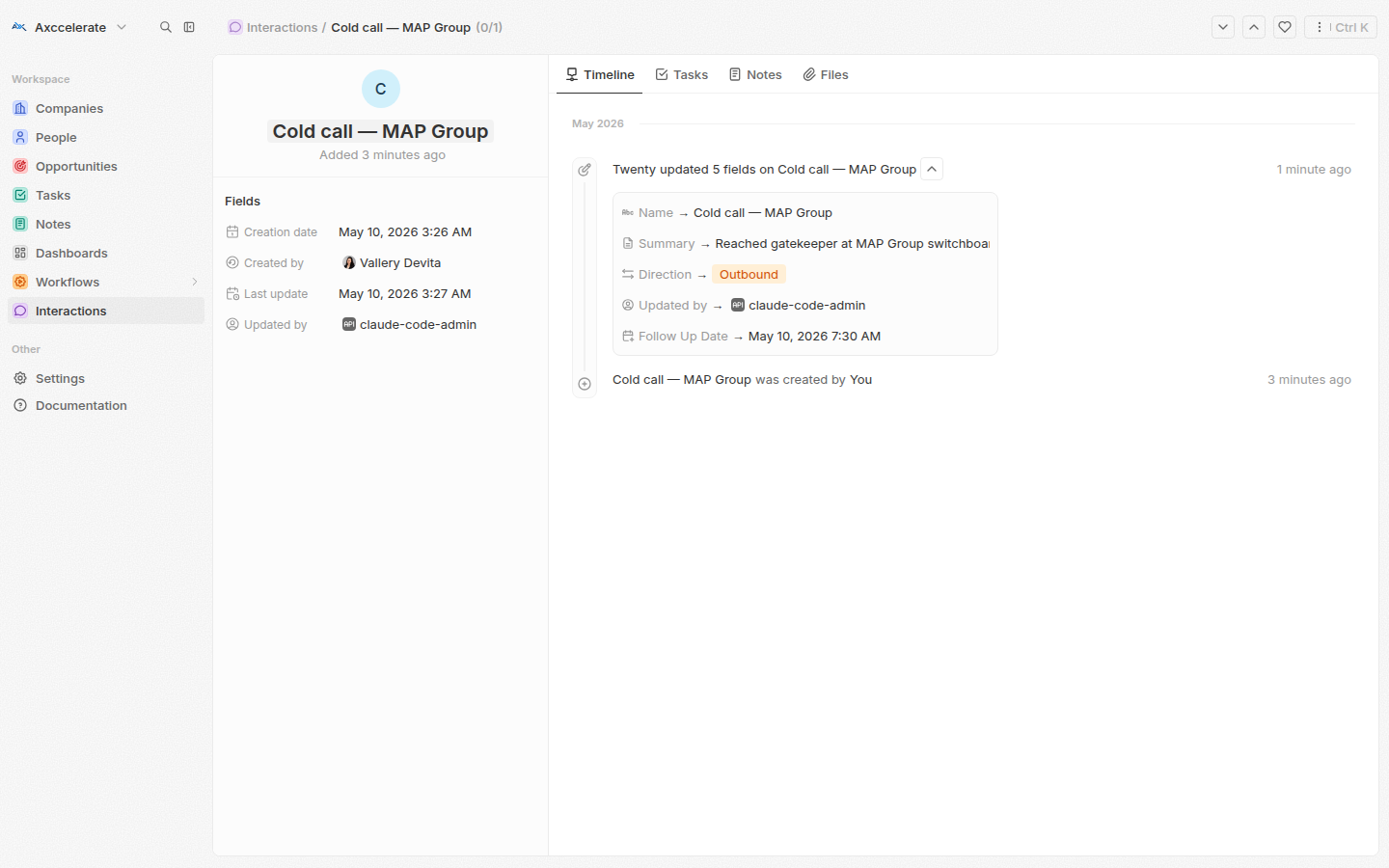
Examples of good summaries
Reached gatekeeper at switchboard. Asked for Pak Hendra (CMO) — out of office until Thursday. Got permission to call back Thursday morning. Tone neutral.
Pak Wijaya (Head of Digital, BFI) picked up directly. Walked through opener — interested but said budget is locked for Q2. Asked for a 20-min intro after Q1 close. Booked for May 27 at 10:00 AM (added to his calendar).
Voicemail. Left ~25-second message referencing their recent Bali resort opening. Will retry tomorrow same time.
7 · Closing the task
After logging the Interaction:
- Mark the task as Done — if you got through to anyone (any outcome counts).
- Snooze it — push the Due Date forward if the prospect said "try me Tuesday." Don't close it; you'll forget.
- Don't delete tasks. If a prospect asks you never to call again, mark Done and leave a clear note in the Interaction. We may want the record later.
The task is closed; the Interaction lives on the company forever.
8 · Warm/Hot leads → create an Opportunity
The moment a prospect shows real interest — agrees to a discovery call, says "send me details," asks pricing — create an Opportunity on the company.
Why: Opportunities are how we track the pipeline. Every discovery meeting that gets booked comes from an Opportunity that started here.
How
- Company page → Opportunities → New.
- Fields:
- Name: "Discovery call — Axccelerate × <Company>".
- Stage: New.
- Amount: rough estimated annual value (your best guess; we'll refine on the discovery call).
- Close date: rough estimate. 90 days out is a fine default.
- Owner: you, until handoff to whoever is running the discovery call.
You don't need to be precise. Better to have a rough Opportunity than no Opportunity.
9 · Navigation tricks
- Cmd / Ctrl + K — global search. Type a company name, hit Enter, you're there.
- Right-click columns in any list view to add or remove columns.
- Saved views — once you've sorted/filtered tasks the way you like, save it (e.g. "My Hot queue").
- Keyboard shortcuts — see the
?menu in the bottom right.
10 · Rules to internalize
- Notes are research, Interactions are reality. Don't conflate them.
- Always log the Interaction before closing the task. No exceptions — even for no-answers.
- Sort by priority. Hot leads have hours, not days, before the signal cools.
- Use the opener. It was written specifically for this prospect; trust it for the first call, refine on call two.
- If you're unsure — ask your manager. Better a quick check than a wrong record.